Streaming Guides

Mobile Game Streaming Guides

Step-by-step setup guides for every major cloud gaming and game streaming platform. Get the best experience on your smartphone.

Platform Setup Guides

Follow these detailed guides to set up your preferred cloud gaming or streaming service on your smartphone.

🔗

Setting Up Steam Link on Smartphone

  1. 1
    Install Steam on PC: Ensure Steam is installed and running on your PC. Your Steam game library will be accessible through Steam Link.
  2. 2
    Download Steam Link App: Download the free Steam Link app from the Google Play Store (Android) or App Store (iOS) on your smartphone.
  3. 3
    Connect to Same Network: Make sure your smartphone and PC are connected to the same Wi-Fi network for initial setup. This is required for the initial pairing process.
  4. 4
    Pair Your Devices: Open the Steam Link app, select "Start Playing," and follow the on-screen instructions. The app will scan your network for PCs running Steam.
  5. 5
    Enter PIN Code: A 4-digit PIN will appear on your smartphone. Enter this PIN in the Steam confirmation dialog on your PC to authorize the connection.
  6. 6
    Run Streaming Test: Steam Link will test your connection quality and suggest optimal streaming settings for your network speed and latency.
  7. 7
    Connect Controller: Pair a Bluetooth controller with your smartphone. Steam Link supports Xbox, PlayStation, and most Bluetooth controllers.
  8. 8
    Start Gaming: Browse your Steam library in Steam Link and launch any game. The game will run on your PC and stream to your phone.
💡 Tip: For remote play outside your home network, enable "Enable Remote Play" in Steam Settings → Remote Play. You'll need a fast upload connection on your PC (minimum 5 Mbps recommended).
🎮

Xbox Cloud Gaming Setup on Android

  1. 1
    Subscribe to Xbox Game Pass Ultimate: Xbox Cloud Gaming is included with Xbox Game Pass Ultimate. Sign up or verify your subscription at xbox.com.
  2. 2
    Download Xbox Game Pass App: Install the Xbox Game Pass app from the Google Play Store. Search for "Xbox Game Pass" or "Xbox" to find the official Microsoft app.
  3. 3
    Sign In with Microsoft Account: Open the app and sign in with the Microsoft account associated with your Xbox Game Pass Ultimate subscription.
  4. 4
    Enable Cloud Gaming: In the app, navigate to the "Cloud Gaming" section. You'll see a library of games available for cloud streaming.
  5. 5
    Pair Your Controller: Xbox Cloud Gaming works best with an Xbox Wireless Controller connected via Bluetooth. Go to your phone's Bluetooth settings and pair the controller in pairing mode.
  6. 6
    Check Connection: Xbox Cloud Gaming requires at least 10 Mbps download. The app will show a connection quality indicator before you start a game.
  7. 7
    Select and Play: Browse the Cloud Gaming library, select your game, and press "Play." The game will start within seconds — no downloads required.
💡 Tip: Enable "Prefer 1080p" in the app settings if your internet connection supports it. Works great over 5G and fast Wi-Fi connections.
âš¡

NVIDIA GeForce NOW on Mobile

  1. 1
    Create NVIDIA Account: Visit geforcenow.com and create a free NVIDIA account if you don't already have one.
  2. 2
    Choose Your Plan: GeForce NOW offers a Free tier (with session limits and queue times), Priority tier (1080p, 60fps), and Ultimate tier (4K, 120fps). Select the plan that fits your needs.
  3. 3
    Download the GeForce NOW App: Install the GeForce NOW app from the Google Play Store (Android) or use the browser-based version on iOS.
  4. 4
    Sign In and Connect Libraries: Sign in with your NVIDIA account. Then connect your Steam, Epic Games, and other gaming library accounts so GeForce NOW can access your purchased games.
  5. 5
    Search for Your Games: Use the search bar to find games from your library that are supported on GeForce NOW. The platform supports thousands of titles.
  6. 6
    Configure Streaming Settings: Go to Settings and choose your resolution and frame rate based on your internet connection. Start with 1080p / 60fps for most connections.
  7. 7
    Select Server Region: Choose the GeForce NOW server closest to your location for minimum latency. The app may auto-select the best server.
  8. 8
    Launch and Play: Select your game and click "Play." GeForce NOW will allocate a cloud PC, launch your game, and start streaming to your device.
💡 Tip: GeForce NOW only streams games you already own on Steam, Epic, and other stores. You need to own the game — it's not a subscription game library. This ensures full legal compliance.

Portable Gaming Setup

Cloud gaming truly shines when you're away from home. Whether you're at the beach, on public transport, or at a café, a well-configured setup ensures you always have a great gaming session.

The key to great portable cloud gaming is preparation: make sure your controller is charged, your data plan has enough capacity, and your preferred service is pre-configured before you leave home.

Consider investing in a smartphone clip or holder for your controller, making it a self-contained gaming unit that's as comfortable as a handheld console.
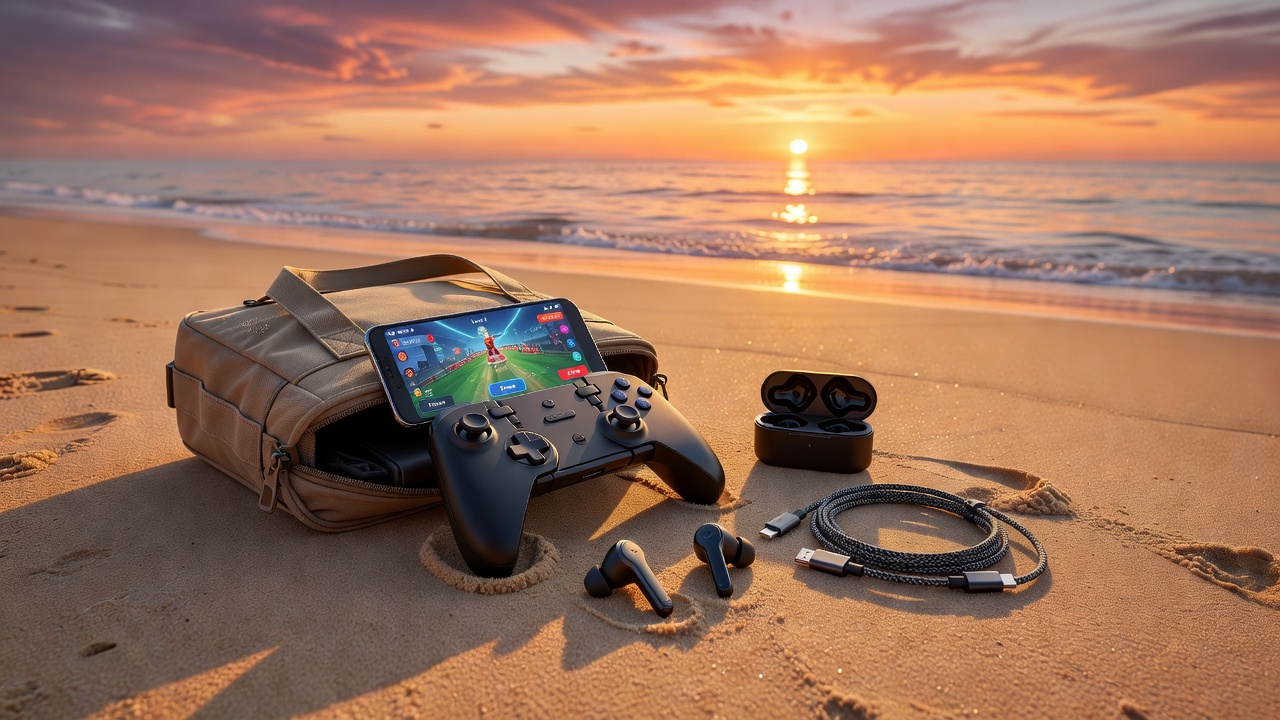
Portable gaming setup with streaming at the beach

Optimizing Your Network for Streaming

Your network is the foundation of a great cloud gaming experience. Use these tips to get the most out of your connection.

Use 5GHz Wi-Fi

The 5GHz Wi-Fi band offers less interference and higher throughput than 2.4GHz. Connect to 5GHz for best performance at home.

Wired Network for PC

For home streaming (Steam Link), connect your PC via Ethernet cable rather than Wi-Fi for a stable, low-latency connection between PC and router.

QoS Settings

Enable Quality of Service (QoS) in your router settings to prioritize gaming traffic over other devices on your home network.

Avoid Peak Hours

Internet congestion during peak hours (evenings and weekends) can increase latency. Schedule intensive gaming sessions during off-peak times if possible.

Position Near Router

Physical distance and walls between your phone and router degrade Wi-Fi signal. Move closer to your router for better signal strength and lower latency.

Use 5G Cellular

When on cellular, use 5G networks when available. 5G offers lower latency and higher bandwidth than 4G/LTE, making it viable for cloud gaming.

Understanding & Reducing Latency

<20ms

Excellent

Imperceptible input lag. Perfect for competitive games and fast-paced action titles. Achievable on local home networks.

20–40ms

Good

Barely noticeable. Suitable for most gaming genres including action games and RPGs. Standard for most cloud gaming services.

40–80ms

Acceptable

Slightly noticeable lag. Good for slower-paced games, strategy, and turn-based titles. May feel sluggish in shooters.

>80ms

Poor

Noticeable input lag affects gameplay. Consider improving your connection, switching servers, or choosing a different streaming service.

Latency Reduction Tips

Choose nearby servers — always connect to the cloud gaming server closest to your physical location.

Minimize network hops — use wired or 5GHz Wi-Fi connections to reduce the number of wireless hops.

Close background apps — other apps using network can add latency spikes during gaming sessions.

Upgrade router firmware — modern router firmware often includes latency improvements and better QoS.

Video Quality Settings Guide

Choosing the right video quality setting balances visual fidelity with streaming stability. Here's a guide to common quality presets.

720p

HD Quality

Good for basic gaming on slower connections. Works on most smartphones. Suitable for RPGs and slower-paced games.

Min: 5 Mbps
1080p

Full HD

Sharp and clear on most smartphone screens. The sweet spot for mobile cloud gaming. Recommended for most users.

Min: 15 Mbps
1440p

Quad HD

Excellent quality on phones with high-res screens. Noticeable improvement on 6"+ screens. Requires strong connection.

Min: 25 Mbps
4K

Ultra HD

Maximum visual quality. Only supported on select services (GeForce NOW Ultimate). Requires very fast internet.

Min: 40 Mbps
60fps

60 Frames/Sec

Smooth motion, ideal for action games. Available on most cloud gaming services. Doubles bandwidth requirements vs 30fps.

Recommended
120fps

120 Frames/Sec

Ultra-smooth gaming for supported games and displays. Only available on premium tiers of select services.

Premium Feature