Optimize your smartphone for the best cloud gaming experience. Controllers, display settings, battery management, and more.
Most modern smartphones support cloud gaming. Here's a breakdown of compatibility by device category.
Samsung Galaxy S series, Google Pixel, OnePlus flagship phones. Excellent cloud gaming support with 90–120Hz displays and strong Wi-Fi 6 connectivity.
Excellent CompatibilitySamsung Galaxy A series, Motorola G Power series. Good cloud gaming support. 60Hz displays are standard; check for Wi-Fi 5 minimum.
Good CompatibilityExcellent cloud gaming support. Safari and dedicated apps support Xbox Cloud Gaming and GeForce NOW. High-quality displays and strong performance.
Excellent CompatibilityLarger screens make tablets excellent for cloud gaming. iPad Pro and Samsung Galaxy Tab are particularly well-suited for extended gaming sessions.
Excellent CompatibilityMany services now support smart TVs, Amazon Fire TV, and Chromecast. Xbox Cloud Gaming works natively on Samsung Smart TVs.
Good CompatibilityGenerally capable of cloud gaming at lower quality settings. Performance depends on the specific model. Recommend checking minimum requirements per service.
Moderate CompatibilityA Bluetooth controller transforms your smartphone into a dedicated gaming device. Here's how to set up the most popular controllers.
Optimize your phone's display settings for the best visual gaming experience.
Set brightness to maximum or use adaptive brightness in gaming mode. Cloud gaming streams benefit from a bright screen, especially outdoors.
Use "Vivid" or "Natural" color modes. Avoid heavy blue light filters during gaming as they can affect color accuracy in games.
Set your phone's screen resolution to Full HD (1080p) or higher. Higher screen resolution doesn't significantly affect streaming bandwidth.
Enable the highest refresh rate (90Hz, 120Hz) on your display. This makes 60fps streams appear much smoother with better touch response.
Enable Gaming Mode / Game Booster if available on your device. This prioritizes CPU/GPU resources and blocks notifications during play.
Set screen timeout to "Never" or a long duration while gaming. You don't want the screen turning off mid-session.
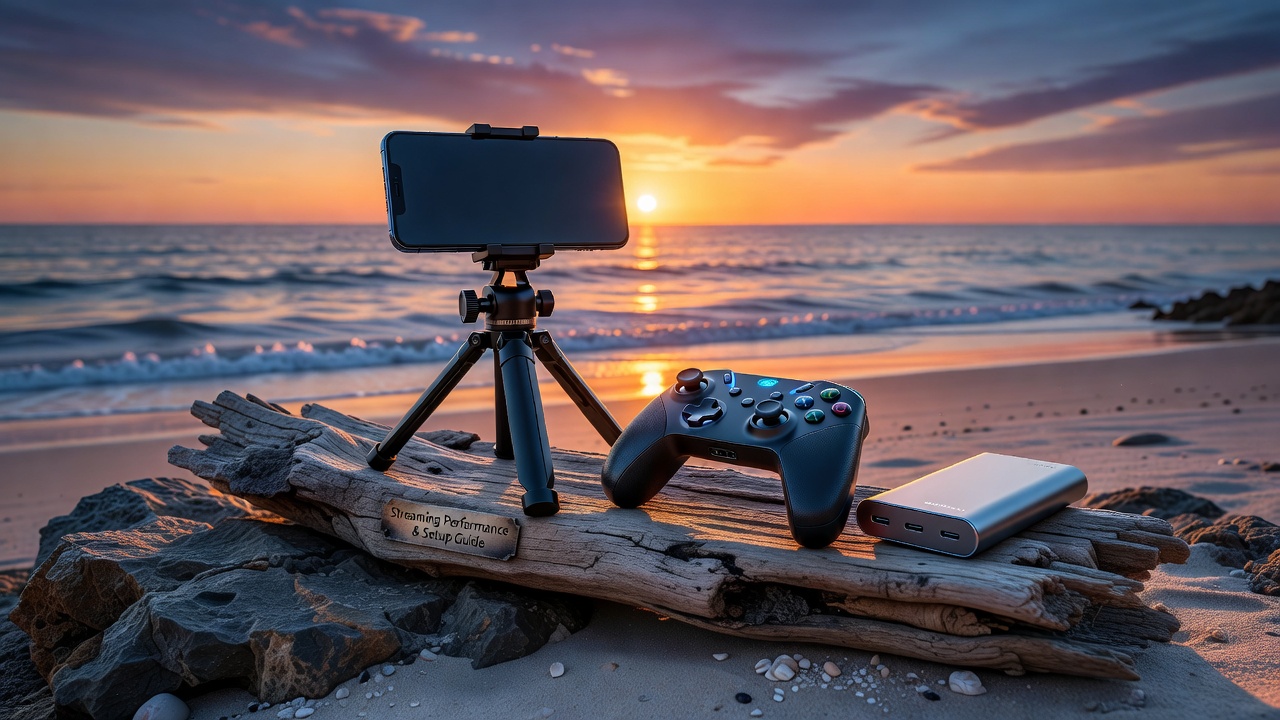
Cloud gaming is one of the most battery-intensive activities you can do on a smartphone. Smart battery management extends your sessions significantly.
Xbox Wireless Controller, PlayStation DualSense, or GameSir T4 Pro. A controller is the single biggest upgrade for cloud gaming comfort.
A controller phone clip converts your Bluetooth controller into a handheld gaming system. Universal clips work with most phone sizes.
A 20,000mAh USB-C power bank provides 2–3 extra charges. Essential for extended outdoor gaming sessions away from power outlets.
Low-latency Bluetooth headphones significantly enhance the gaming experience. Look for headphones with gaming mode (under 60ms latency).
A Wi-Fi mesh extender improves coverage throughout your home, ensuring a strong signal even in rooms far from your main router.
Clip-on phone coolers prevent thermal throttling during long gaming sessions. Particularly useful in warm climates or during summer gaming.
Optimize your home network for the best cloud gaming and local streaming performance.
A Wi-Fi 6 (802.11ax) router dramatically improves performance for multiple simultaneous users. Modern routers also offer better QoS controls.
Place your Wi-Fi router in a central location in your home, elevated, and away from walls and obstacles for maximum signal coverage.
Connect your gaming PC to the router via Ethernet cable rather than Wi-Fi. This eliminates Wi-Fi overhead for Steam Link and local streaming.
Quality of Service settings in your router prioritize gaming traffic. Enable this and set your gaming device as a high-priority client.
Connect your smartphone to the 5GHz Wi-Fi band rather than 2.4GHz. 5GHz offers less interference and higher bandwidth for streaming.
If your ISP offers fiber or faster plans, upgrading ensures consistent bandwidth for multiple cloud gaming sessions simultaneously.